This setup is only required for Historic mode. In Starter Deck mode you just configure the settings in the Account Switch menu and you are ready to go, without taking any screenshots yourself.
Manage Accounts
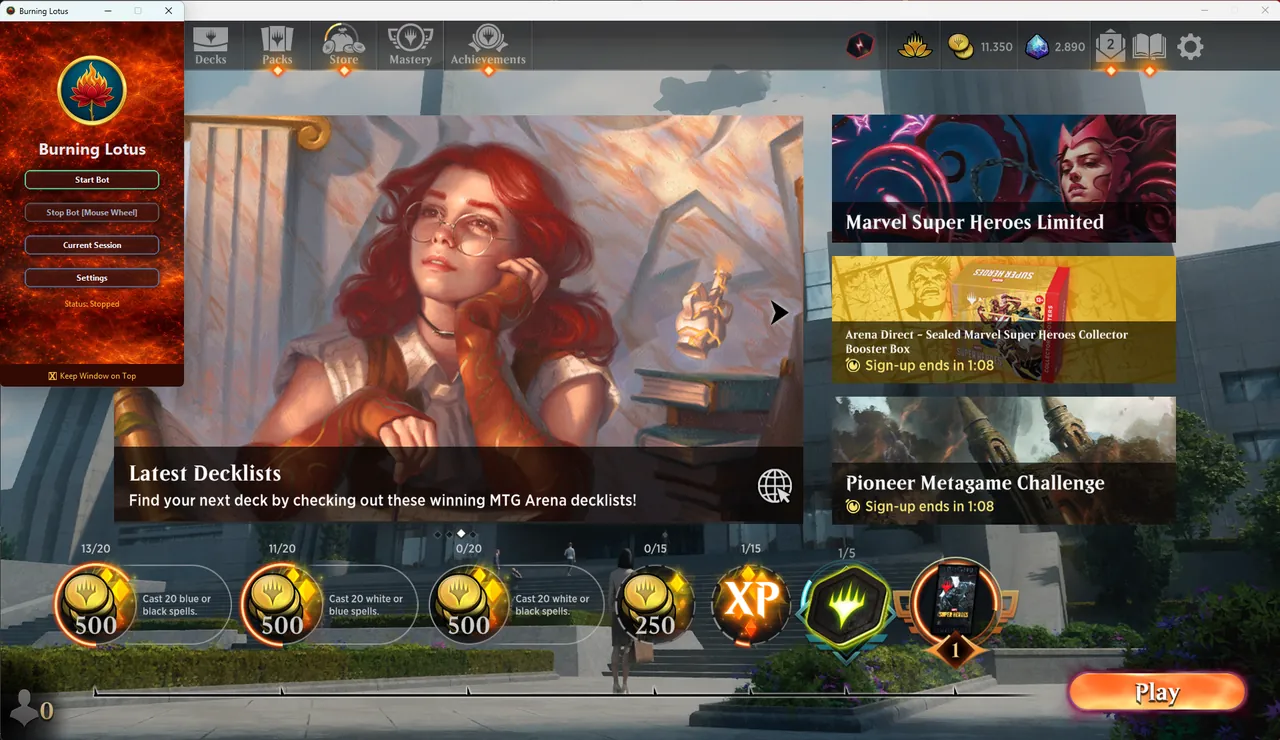
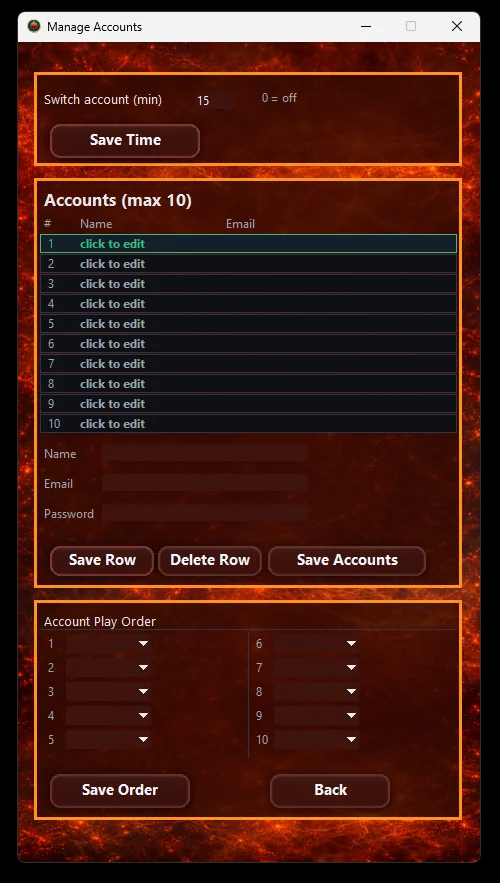
Open Settings → Manage Accounts in the bot's interface. Here you can choose whether the bot switches accounts by Time or by Quests. If you choose Time, set the interval after which the bot should switch to the next account, for example 15 min. If you choose Quests, set the number of quests the bot needs to finish before it switches accounts (choose 3 if you want it to finish all quests), and optionally the number of wins (0-15) it needs to reach first. Confirm your settings with the Save button.
Enter the accounts you want to run in the list below, then set the order in which they should be logged in at the bottom of the window.
Rename your decks by color
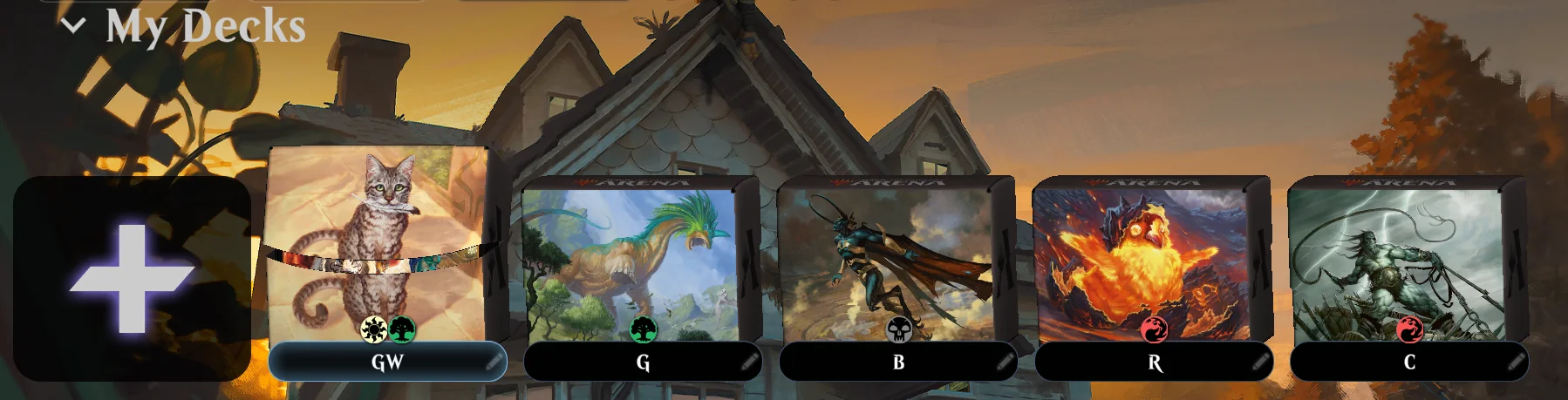
Open your decks in Magic Arena and rename each one using a color abbreviation. The bot uses these names to pick the right deck for the active color quest.
Multicolor decks list the colors in sequence. For example, RG = Red/Green. C is reserved for creatures-only decks used during the Creature Quest.
Take a screenshot of each deck thumbnail
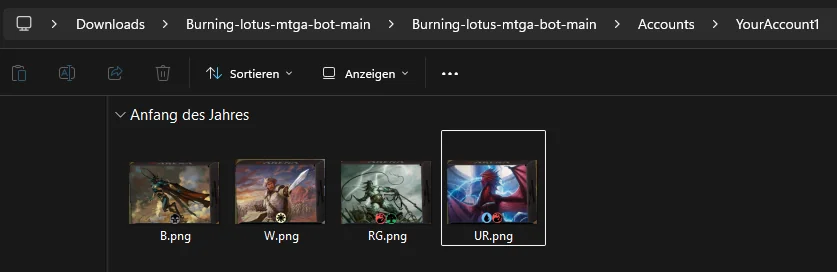
Capture each deck's thumbnail (as shown below) so the bot can visually recognize the deck on screen.
Save screenshots into the Accounts folder
Save each screenshot inside the Accounts folder, under a subfolder named after the matching account. Name each image the same way as the deck. For example, a Black deck is saved as B.png.